Fifty Apps You Never Chose: Auditing the Defaults That Came With Your Phone
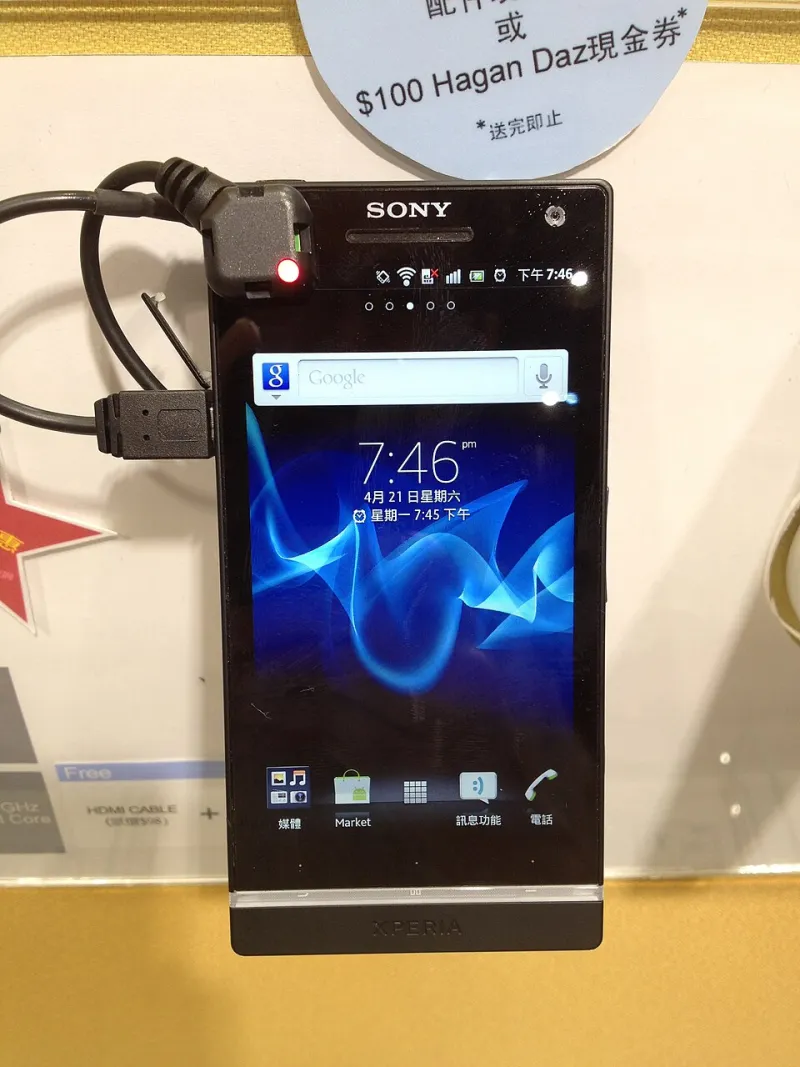
Photo: Novo8, CC BY-SA 3.0, via Wikimedia Commons
There's a moment in every unboxing where the phone is technically yours but practically isn't. You peel the film off the screen, sign into one account, and by the time the home screen settles you're staring at 45 icons. Two you expected. A dozen you'll never open. And a whole row of things you didn't ask for and can't quite name.
That's not an accident, and it isn't entirely a scam either. It's a stack of defaults — decisions made by your carrier, the manufacturer, and the operating system before you ever touched the device. Some of them are genuinely good. Plenty are just someone else's preference wearing your wallpaper.
Here's how to tell the difference.
The defaults arrive in three waves
Most people think about the first wave and stop there.
Wave one: preinstalls. The carrier bundle (Verizon, AT&T, and T-Mobile all ship their own), the manufacturer's own suite, and the Google or Apple layer underneath. On a US carrier-locked Samsung or Motorola you can easily find 20 to 30 of these before you've downloaded anything.
Wave two: default handlers. Which app opens a link. Which app takes an address and turns it into a map. Which keyboard appears. Which assistant hears you say 'hey.' These don't look like apps on your home screen, but they decide what happens dozens of times a day.
Wave three: silent policies. Where photos back up and whether they upload over cellular. Whether the phone suggests apps. Whether unknown sources can install anything. What happens when you tap a phone number in a web page.
Waves two and three are where the real leverage sits. Wave one is clutter. Waves two and three are plumbing.
Do an inventory before you uninstall anything
The instinct is to start deleting. Don't. Start by listing.
On Android, open Settings → Apps → See all apps. On iOS, Settings → General → iPhone Storage gives you the full roster with sizes attached. Copy the names into a note or a spreadsheet and tag each one of three ways: Keep, Replace, or Unknown.
The unknowns are the interesting pile. Give them 30 days before you decide. A surprising number of 'bloatware' apps are actually doing something — a stylus driver, a watch companion, a hardware diagnostic tool you'll want the first time your camera acts up.
Then run a second pass. Search your settings for the word 'default.' On Android it lives under Settings → Apps → Default apps. On iOS, US users got a proper Default Apps screen in Settings → Apps, and it's worth visiting even if you've never opened it. Check the browser, mail, maps, calling, messaging where the OS allows it, wallet, keyboard, and assistant slots.
Screenshot both screens before and after you make changes. System updates have a habit of quietly restoring a default you replaced six months ago, and a screenshot is how you catch it.
'Can't remove' is not the same as 'can't disable'
This is the single most useful distinction in the whole exercise. Plenty of system apps can't be uninstalled but can be disabled — which stops background activity, hides the icon, and stops it from claiming default status. That's usually enough.
What you should not touch: the dialer, the SMS app, carrier services and IMS components (these carry VoLTE, Wi-Fi calling, and the address that emergency services see), Google Play Services, the system update component, and anything with 'emergency' or 'alert' in the name. Disabling the wrong one of these can cost you calls, texts, or the location ping that a 911 dispatcher depends on. That is not a hypothetical tradeoff worth making for a cleaner home screen.
Also slow down on carrier apps specifically. Several of them double as account tools — voicemail, usage meters, billing, network management. Before you delete, check your carrier's website for how you'd manage the account without the app. If the answer is 'you can't easily,' file it under Keep and move on.
The handlers that actually change your day
Four defaults do the heavy lifting.
Browser. Every link inside a text message, an email, or a QR code lands here. Switching it changes which search engine sees your queries and which tracking model follows you around the web.
Maps. Tap an address in a calendar invite or a boarding pass and this is what opens. If it's not the app with your saved places and offline maps, you'll feel it.
Keyboard. Third-party keyboards often request full access, which is a big permission on a screen where you type passwords and card numbers. If you're going to replace the stock one, read that prompt carefully.
Assistant and voice. Microphone access, wake-word listening, and a surprising amount of behavioral data. Pick deliberately or turn it off deliberately — but pick.
While you're in there, check the photo backup target and whether it uploads on cellular. That one setting quietly eats more data plans than any streaming app.
Use the 30-day disable rule
Disable first, delete later. Live with the app off for a month. If nothing breaks — no missing notifications, no orphaned watch, no dead voicemail — uninstall it. If something does break, you've lost nothing but a toggle.
Two exceptions to the rule: apps tied to billing (uninstalling won't cancel a charge) and apps tied to hardware you own (earbuds, watches, styluses, car head units). Those deserve a support-page check before the toggle flips.
Sometimes the default is the right answer
The point of this exercise isn't to replace everything. Stock apps tend to integrate more tightly with the OS, get security updates faster, and sip less battery. A default you consciously evaluated and kept is still a choice — arguably a better one than a replacement you installed out of habit and forgot about.
What you're buying with an hour of auditing is not a minimalist home screen. It's knowing whose decisions you're living inside. Most people have never once looked at that list. That's the trap — not the apps, but the not-looking.